
JuicyChat Image Creation
A portrait tells people what a character looks like. A scene image shows where they are and what's around them. Decide which of those jobs the image needs to do before choosing a format or writing a prompt.
Portraits, Gallery Images and Scene Art
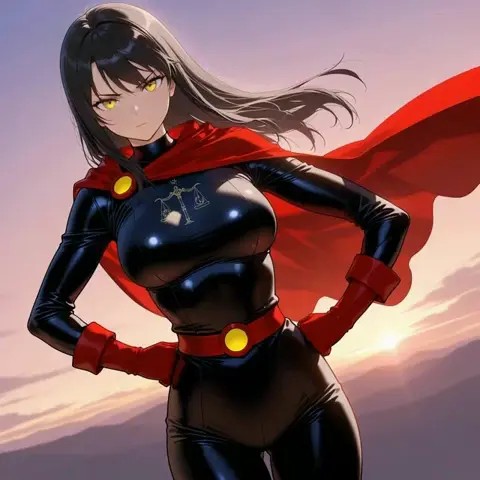
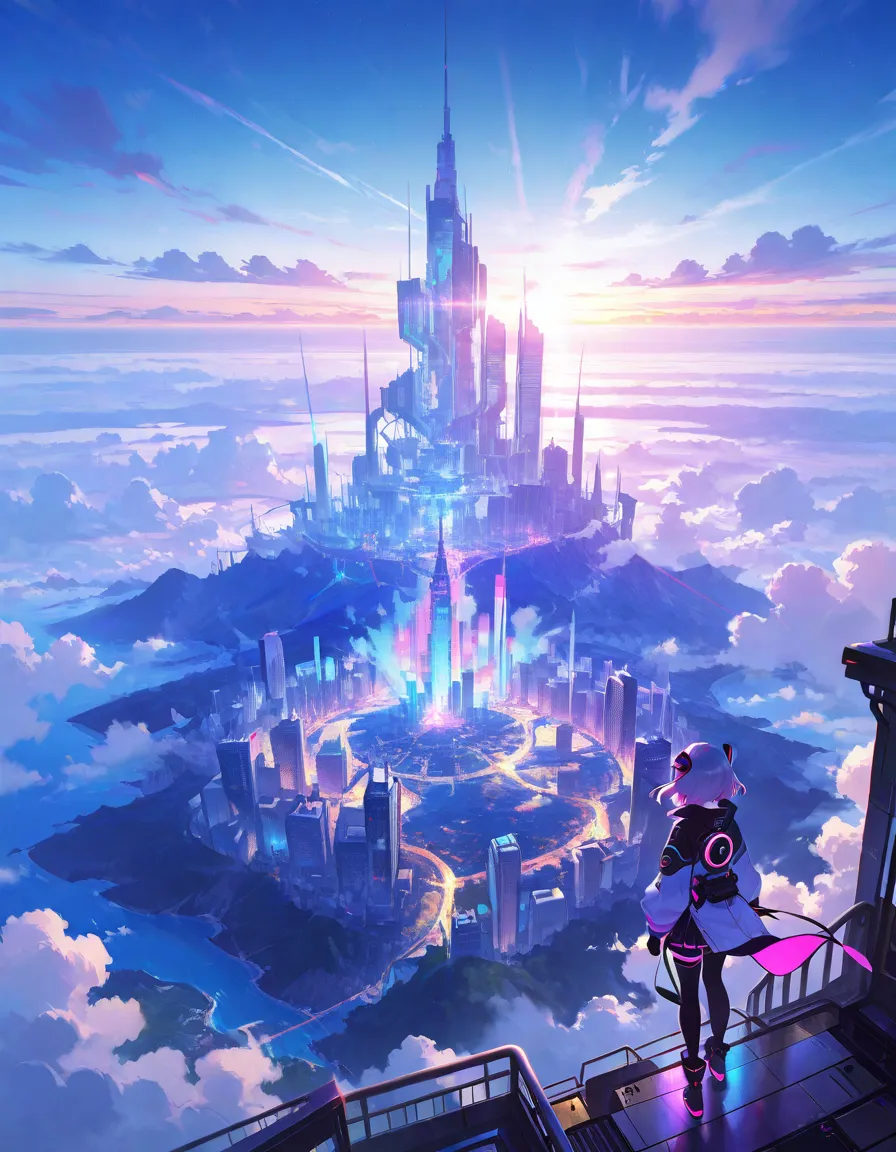
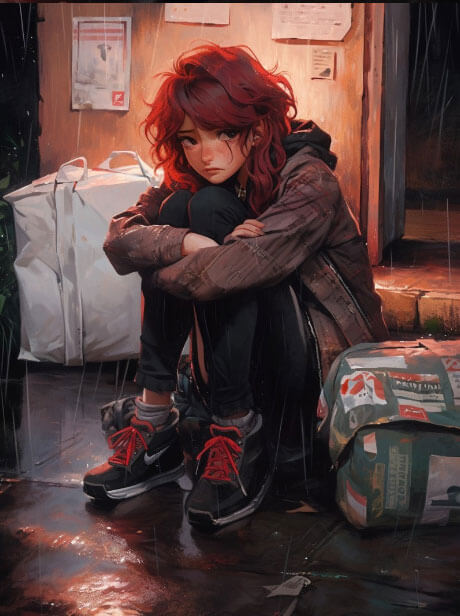
A tall portrait leaves room for clothes and posture on a character card. A wide landscape can show a room with two people or the road into a city. Our gallery shows both approaches: a character against a dark street and a kingdom seen from above.
In the connected JuicyChat image tool, a text prompt describes a new picture, while Figure Remix uses a compatible saved or available figure as a starting point. Changing the setting in a text prompt and reusing a figure are different ways of getting consistency.
An Example Portrait Prompt
Illustrated portrait of an adult mapmaker in a weathered blue coat, seated at a harbor window at dusk, folded maps and a brass compass on the desk, soft side light, waist-up view.
Note the order: subject, clothing, setting, light, framing. If you want to compare two lighting styles, change only the light first. For a cover, make sure the face and gesture are still clear when the image is cropped to a thumbnail.
Can You Upload Pictures to JuicyChat?
In a signed-in chat, open Chat Settings and turn on Scene Card. Where the custom option is available, choose your own image instead of the creator's. This changes the background of that chat, not its character portrait.
The catalog and image workspace here use supplied portraits and don't accept uploads. If you use the custom background in the signed-in service, choose artwork you have permission to share rather than a personal or identifying photo.